Installation Instructions
The following equipment will be supplied by CopperTree:
- CopperTree K-Link
- Power adapter
- DIN clip and screws
Set up your K-Link
You’re on your way to gaining Insights into your building operation and equipment performance. First, let’s set up the device that will gather and send your BAS data to CopperTree servers.
Step 1: Prepare the device
The K-Link requires a 110-240 Volt AC receptacle. Further, an Ethernet jack to the BAS controls LAN or VLAN is also required. To ensure the K-Link can connect to the CopperTree server, the firewall should be configured to allow the FQDNs outlined here.
The K-Link can be deployed on a desktop, on top of a BAS workstation, or a DIN rail using the mounting bracket. The mounting bracket is present in the box with the K-Link. The mounting brackets can be screwed onto the device and then the device can be installed to a DIN rail.

Step 2: Plug-in Device
- Connect the Ethernet cable to the device’s Ethernet port, and then to the BAS switch. Note: If the BAS network does not have access to the internet, LAN 1 of the Edge Device is connected to the Corp Network and LAN 2 to the BAS.
- Connect the power adapter.
- Check for a steady red light from the device, and allow 1 minute for the device to boot fully.
Normal Operating Sequence
- Solid Green Link Light
- Flashing Amber Speed Light
- Solid White Power Light

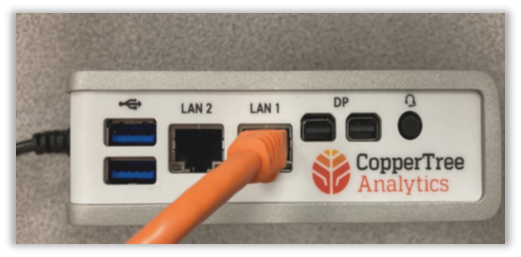

Step 3: Verify Connection
- Contact CopperTree’s Customer Solutions team to let them know the device is installed and deployed on the network.
- Hours: 07:30 – 16:30 PST (GMT-8h)
- Direct: 1.778.726.0524
- Inform CopperTree Customer Solutions if you need to assign a specific IP address to the device and have not already coordinated the setup ahead of the device shipment
In this case, the device will need to be plugged into a DHCP network for us to remotely set it up. Please provide:
- The IP address, subnet mask, and gateway
- DNS/NTP servers (optional)
- Wait for Customer Solutions to verify that the device is connected.
Advanced Setup
For Serial Telnets, additional setup is required. The setup for this is detailed below:
For Serial Legacy Connections
- Plug into the internet via the Ethernet port of the K-Link.
- Plug the USB-serial cable adapter into a USB port of the K-Link.
- Plug the USB adapter into the serial side of the grey RJ-11 Siemens adapter.
- Plug the RJ-11 into the MMI port on the panel. (It looks like a phone cable.)
Troubleshooting
On the Ethernet port of the K-Link are two LEDs that can be used to troubleshoot the device.


Further Troubleshooting
Contact CopperTree Analytics Customer Solutions at [email protected] or 1.778.726.0524.