Create a Rule from Scratch
Description
When no Community Library template fits, you can build your own Rule Template. A Rule Template holds the logic; a Working Rule applies that logic to specific Trend Logs in a building. This article walks through creating a template from a blank canvas, setting when it raises an Insight, and turning it into a Working Rule.
Create a New Rule Template
From the Building Dashboard:
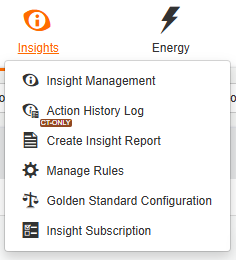
- Click the Insights tab.
- Click the settings to open Manage Rules.
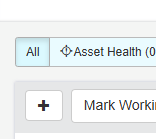
- Click the Add icon in the top-left.
- Select Create a new Rule Template and click proceed.
Enter the Template Details
Fill in the details page:
| Field | What to enter |
| Name | A clear name, e.g. “Zone heating and cooling simultaneously” |
| Insight Type | Fault Detection, Energy, Energy KPI or Integrity KPI |
| Description/Method | What the rule checks and how |
| Diagnosis/Recommended Action | Likely causes and what to check. This is shown on the Insight Details page. |
| Message | Default Insight message. It can be changed per Working Rule. |
| Priority | Low, Medium or High. Used for filtering only. |
| Notes and Default Inputs | Optional |
Click proceed to open the Logic Builder.
Build the Logic Flow
- Click Logic Blocks and drag an Input Data block onto the canvas for each input.
- Add a combination of Functional Blocks to achieved desired outcomes.
- Optionally add a Calculated Trend Log output block to save the result as a CTL.
- Select a block and click Preview to check its output on real data.
- Click Save, then Next.
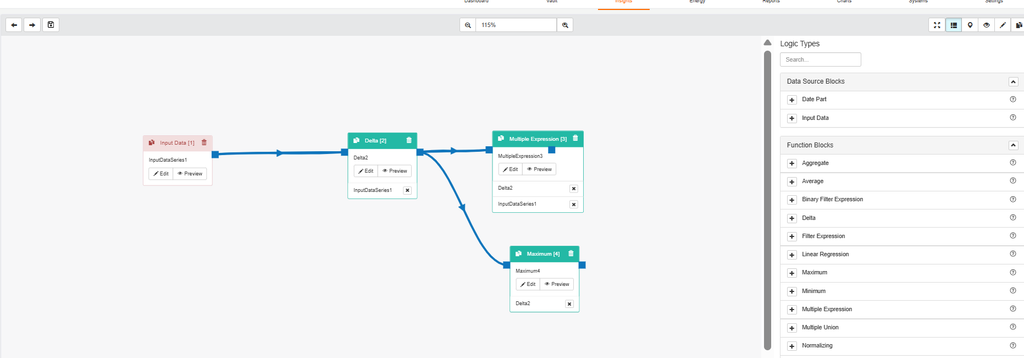
Please note: every block must be connected. Series must share timestamps, so aggregate or normalize inputs to a common interval before combining them. See List of Logic Blocks and the expression syntax in Rules and Logic.
Set the Insight Trigger
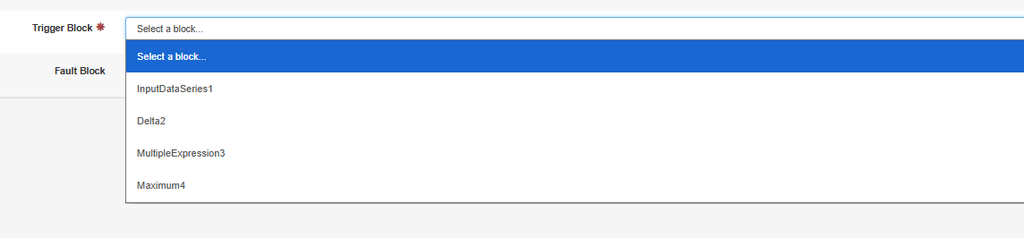
- Choose the Trigger Block – the block whose output raises the Insight (the Multiple Expression block in this example).
- Choose the Trigger Type: Active High, Rising Edge, Falling Edge, or Rising and Falling Edge.
- Set the Aggregation Interval and Date Range. The date range must hold enough data for the calculation; for a monthly average use at least two months.
- Click proceed.
Review and Finish
- Check the final page shows two green checkmarks for Details and Settings, and Status shows enabled.
- Click the final button to save the template to the building.
Create a Working Rule
- In Manage Rules, click the view of the new template.
- Click Add under Working Rules.
- Enter a name, message and priority, and check Enabled.
- Assign a Trend Log or constant to each input.
- Click Save, then select the rule and click Run to test it on existing data.
To add the rule to many Systems at once, see Configuring Rules Using Systems.
Please note: Working Rules run when all input Trend Logs have new samples. Insights older than two years are not generated. See Working Rule Execution and Insight/CTL Generation.