
Description
If someone already has a Kaizen account and only needs access to your portfolio, add them as a Consultant User instead of creating a new account. Typical consultants are colleagues at another CopperTree client or consultants who work across several portfolios.
| What they get | Read Only or Read/Write access to the whole portfolio (Cascade) or to specific buildings (Selected Buildings), depending on the Group you add them to |
| What they can’t get | Admin access. Consultants cannot be added to the Admins Group. |
Open Your Client Dashboard
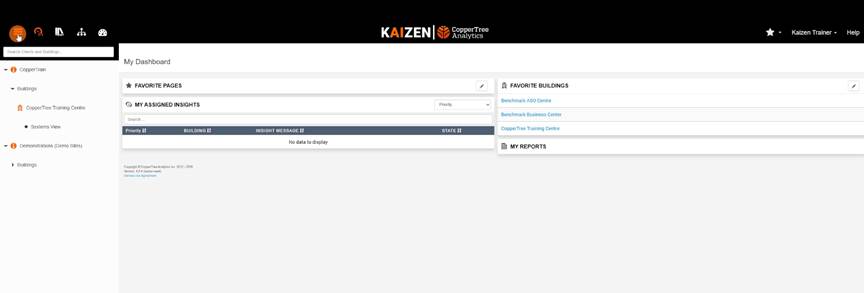
- Click the menu in the Kaizen Bar to open the Clients & Buildings browser.
- Select the client whose portfolio you want to manage.
- The Client Dashboard opens, showing building locations, data collection status and report activity.
Choose a Group
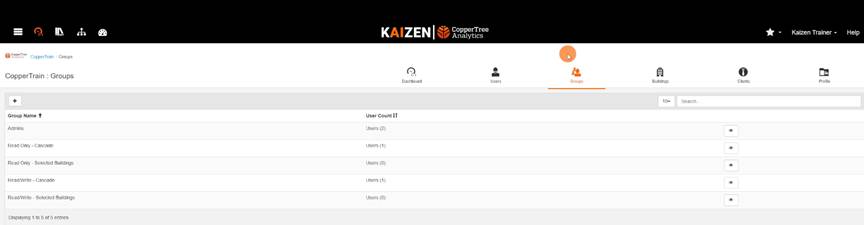
Click the Groups tab. Use Groups, not Users: Users is where you create a brand-new account.
| Group | Access granted |
| Read Only – Cascade | View every building in the portfolio |
| Read Only – Selected Buildings | View only the buildings selected for the Group |
| Read/Write – Cascade | Edit every building in the portfolio |
| Read/Write – Selected Buildings | Edit only the buildings selected for the Group |
Add the Consultant to the Group
- Click the Group that matches the access you want to grant, for example Read Only – Cascade.
- Open Manage Members. The list shows everyone in the Group, with Remove, Save and Add tools above it.
- Click the orange Add to open the Add a User dialog.
- Enter the email address tied to the person’s existing Kaizen account.
- Click Submit. Kaizen looks up the account and adds it to the member list tagged “(Consultant)”.
Confirm and Save
- Check that a green banner confirms the user was added, and that their row reads “(Consultant)”.
- Click the Save (disk icon) in the toolbar to finalize the Group’s membership.
The consultant now has access to your portfolio at the level the Group grants.
Please Note
- To remove a consultant, open Manage Members, select them, click Delete, then Save. This does not delete their Kaizen account.
- Insights can only be assigned to users at the same level or lower in the Client Tree. Adding a user from a higher-level Client as a Consultant User lets you assign Insights to them.
